Popular Games
 All Games





How to Play PUBG Mobile on PC: 5 Proven Methods
2025-07-11

PUBG MOBILE is a battle royale shooter that challenges players to survive, fight, and coordinate with teammates.
Why Play PUBG Mobile on PC?
While PUBG Mobile dominates mobile battle royale gaming, many players seek the precision of mouse/keyboard controls and larger screens. According to Google Trends, searches for "PUBG Mobile PC emulator" grew 70% YoY in 2023. Fortunately, multiple reliable methods exist – no rooting required.
Top 5 Methods to Play PUBG Mobile on PC
1. BlueStacks: Best for Performance & Customization
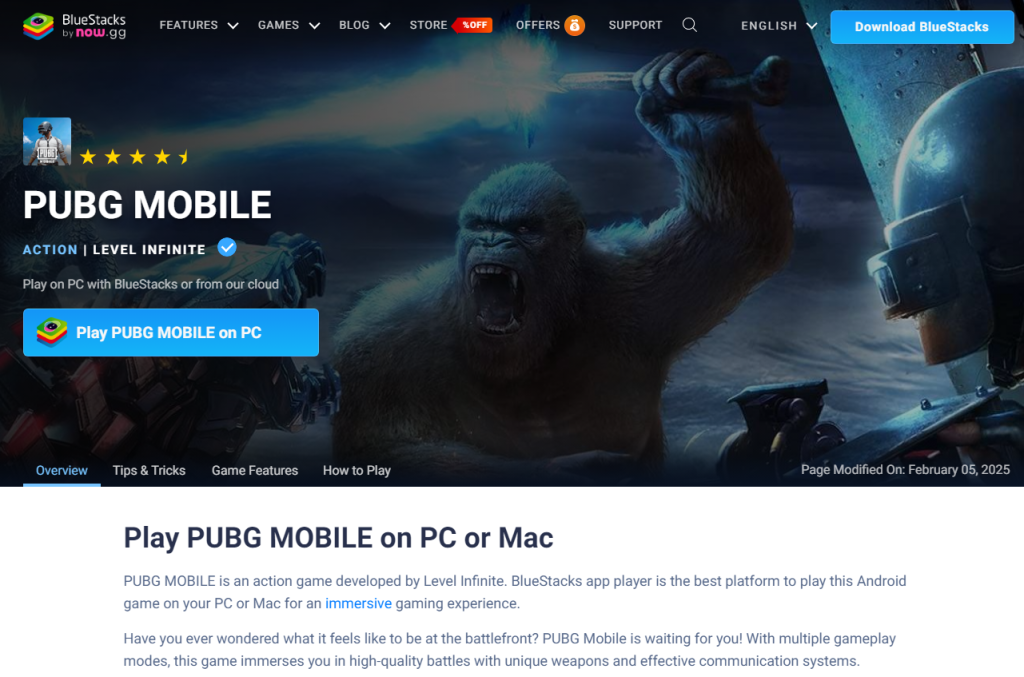
The most downloaded Android emulator (500M+ users) with PUBG-optimized keymapping.
Steps:
1. Download BlueStacks 5 installer (Windows/Mac)
2. Sign in to Google Play Store
3. Install PUBG Mobile
4. Configure controls via "Game Controls" menu
5. Launch and play!
Key Features:
✔️ 120 FPS support | ✔️ Multi-instance | ✔️ Macro recorder
System Requirements: Windows 7+/macOS Sierra, 4GB RAM (8GB recommended), 5GB storage.
2. Gameloop: Official Tencent Emulator
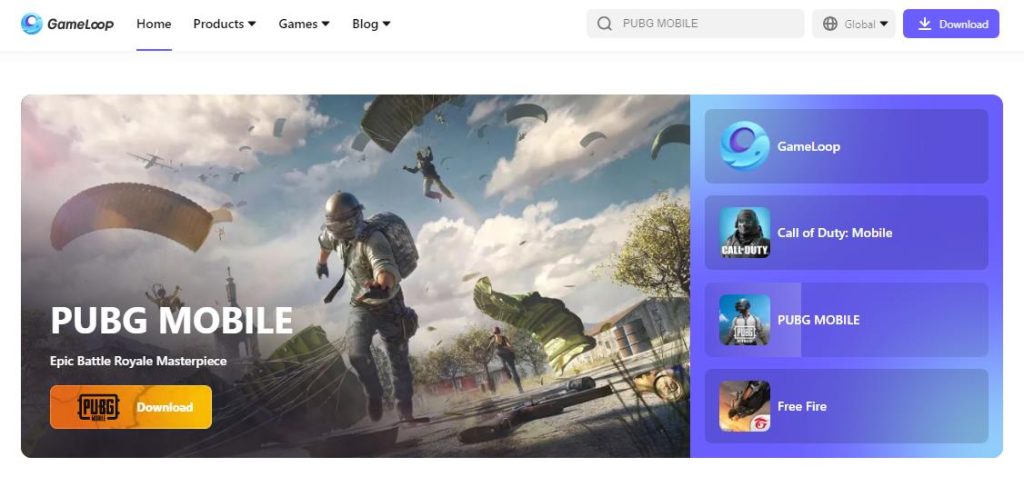
Tencent’s dedicated tool for PUBG Mobile with anti-ban protection.
Steps:
1. Install Gameloop from official site
2. Find PUBG Mobile in "Game Center"
3. One-click installation
4. Auto-configured controls
Pro Tip: Enable "Smart Keymapping" for instant mouse-to-aim conversion.
Compatibility: Optimized for Tencent games only. Free with minimal ads.
3. Kingshiper: Phone-to-PC Mirroring & Control
Directly mirror and control your mobile screen on PC – no emulation.
Steps:
1. Install Kingshiper on PC & mobile
2. Connect via USB (enable USB debugging)
3. Mirror screen → Activate "Control Phone"
4. Play PUBG Mobile with keyboard/mouse
Ideal For: Low-spec PCs. Supports iOS/Android. Free version available.
4. NoxPlayer: Lightweight Alternative
Balances performance and compatibility for mid-tier hardware.
Steps:
1. Download NoxPlayer
2. Log into Google account
3. Install PUBG Mobile
4. Customize key controls via toolbar
Note: Some users report occasional crashes on macOS.
5. Google Play Games Beta
Google’s native solution for playing Android games on Windows.
Steps:
1. Install Google Play Games Beta
2. Search and install PUBG Mobile
3. Play with built-in keyboard mapping
Limitations: Beta-stage; requires Windows 10+, 8GB RAM, SSD storage.
| Tool | Best For | Free? | iOS Support | Min. RAM |
|---|---|---|---|---|
| BlueStacks | High-end PCs | yes | ❌ | 4GB |
| Gameloop | Official Experience | yes | ❌ | 2GB |
| Kingshiper | Low-spec Devices | yes | ✔️ | 2GB |
| NoxPlayer | Mid-tier Systems | yes | ❌ | 2GB |
| Google Beta | Future-proof Setups | yes | ❌ | 8GB |
Optimizing Your PUBG Mobile PC Experience
● Reduce Lag: Close background apps; allocate more RAM in emulator settings
● Ban Risk: Avoid mods/hacks – official emulators (Gameloop) are safest
● Control Tips: Set ADS to right-click
○ Map leaning to Q/E keys
○ Enable gyroscope emulation
I hope this guide for PUBG Mobile proves helpful to everyone!
If you're looking to get resources more easily and unlock your desired skins in PUBG Mobile, then head over to BUFFBUFF to top up! At BUFFBUFF, you can get all top-up-able in-game resources at the most affordable prices!
PUBG MOBILE is a battle royale shooter that challenges players to survive, fight, and coordinate with teammates.