Popular Games
 All Games





Arena Breakout Infinite Graphics Settings: Max FPS, Low Latency & Clear Visibility
2026-06-30
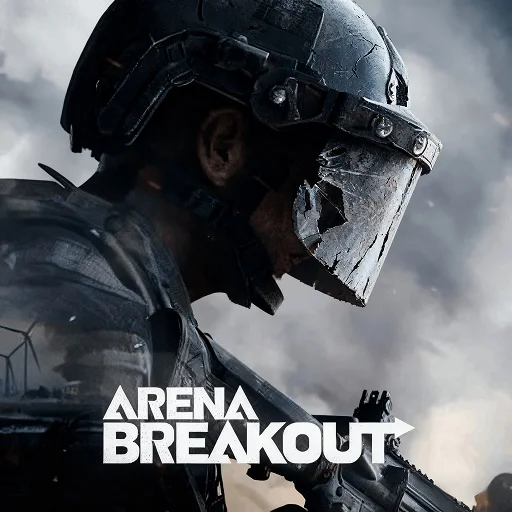
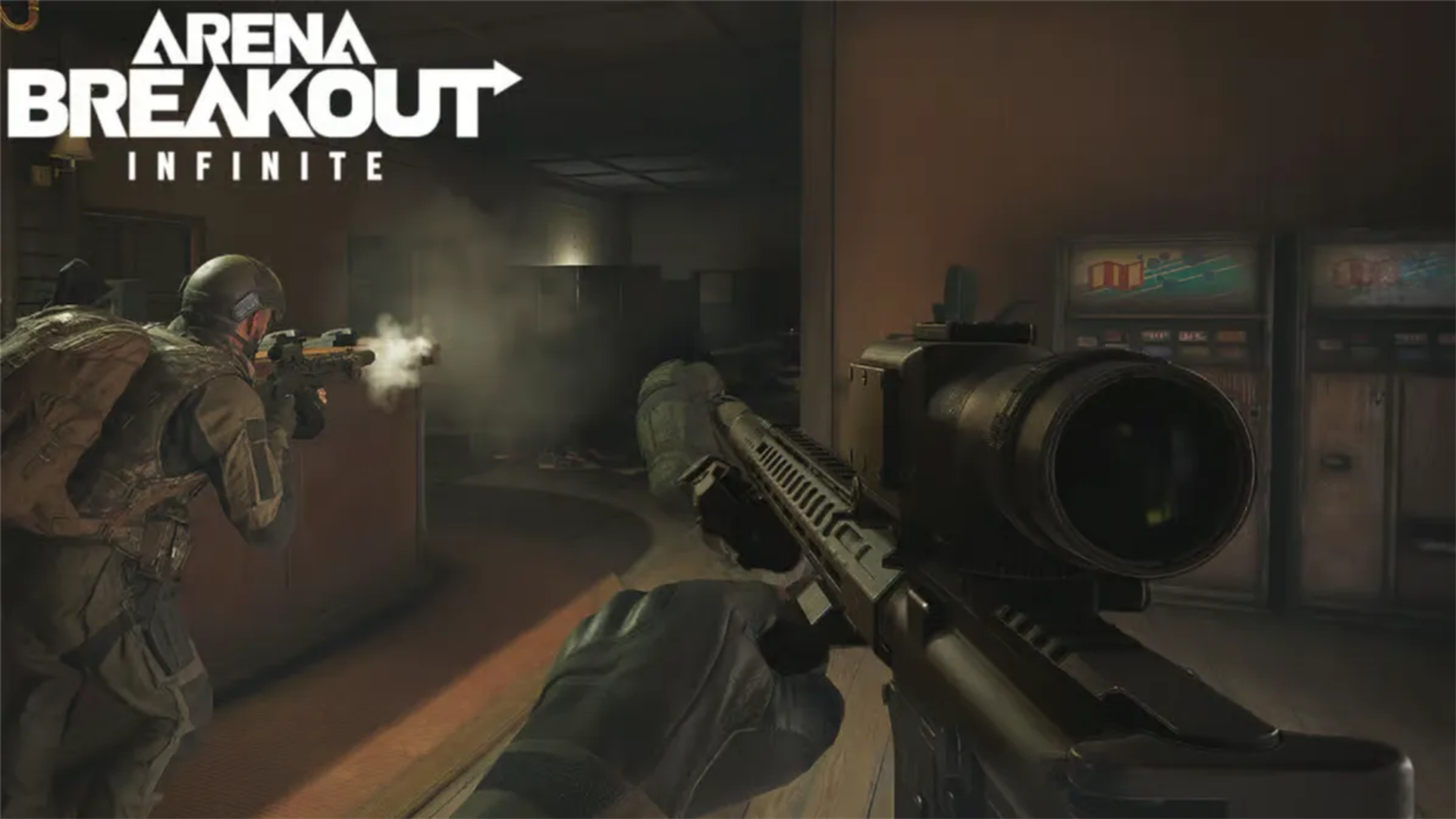
If you want better performance in Arena Breakout Infinite, the goal is simple: keep the image clean enough to spot targets quickly while minimizing input lag, stutter, and unstable frame pacing. This guide combines practical in-game tuning with system-level optimization so you can play with higher consistency in both PvP and PvE raids.In the Arena Breakout Infinite Season 6 , well-optimized settings can significantly enhance both your combat performance and looting efficiency.
You will get a ready-to-use competitive preset, hardware-tier presets, Windows and GPU driver tuning, and a fast troubleshooting checklist. If your priority is winning gunfights, these Arena Breakout Infinite Graphics Settings are built for responsiveness first and visual noise reduction second.
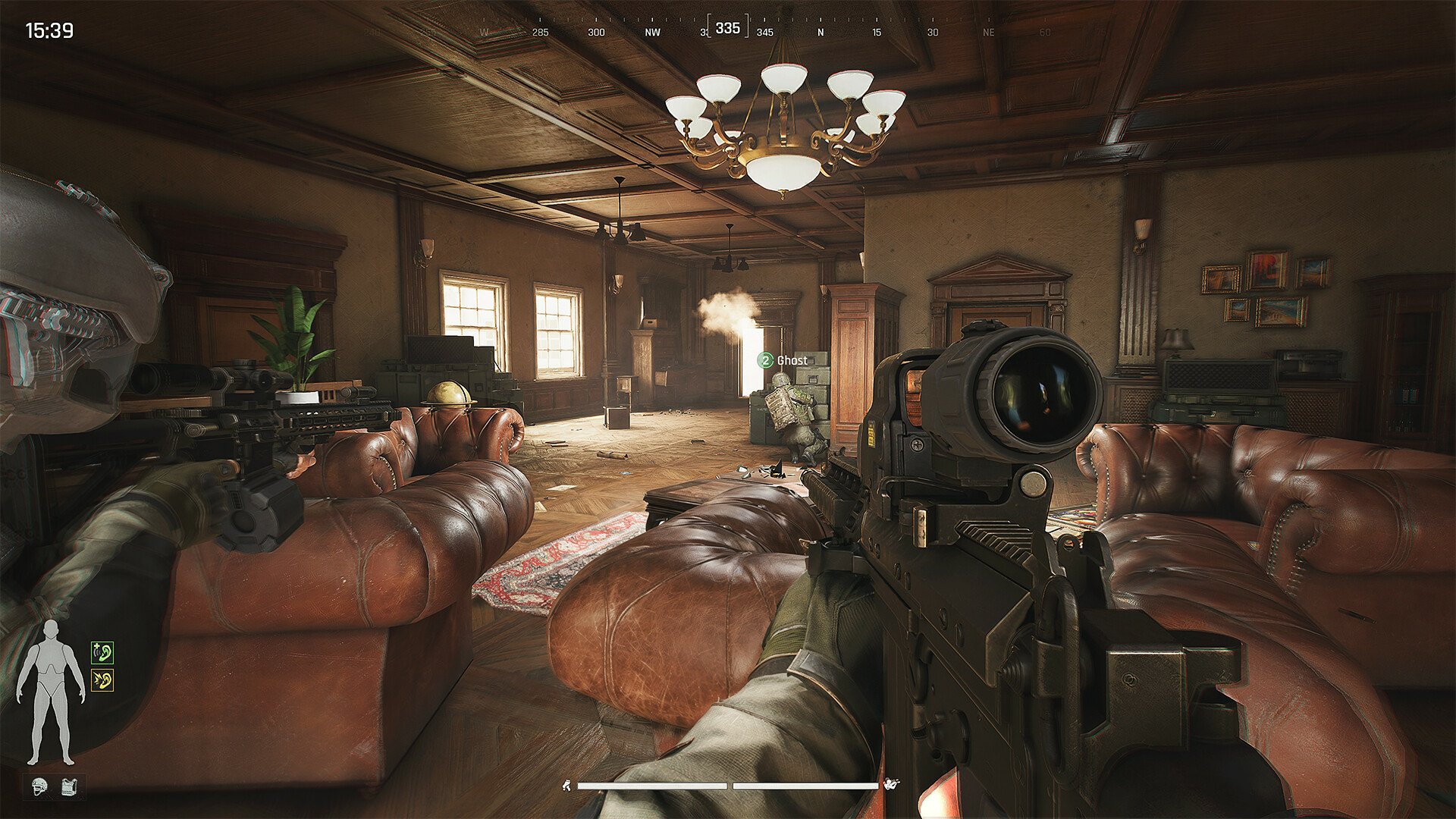
Quick-Start Competitive Arena Breakout Infinite Graphics Settings (Best Overall)
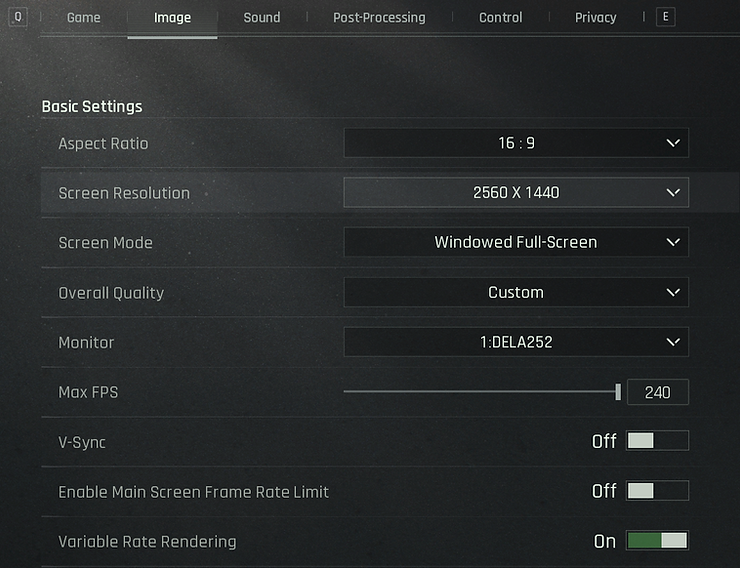
Use this profile first, then fine-tune per map and hardware. It is designed around high readability and reduced processing overhead.
- Display Mode: Fullscreen
- Resolution: Native monitor resolution (drop one step if heavy fights cause drops)
- Frame Rate Limit: Match refresh rate (e.g., 144 for 144Hz) or slightly below for stable frame pacing
- V-Sync: Off
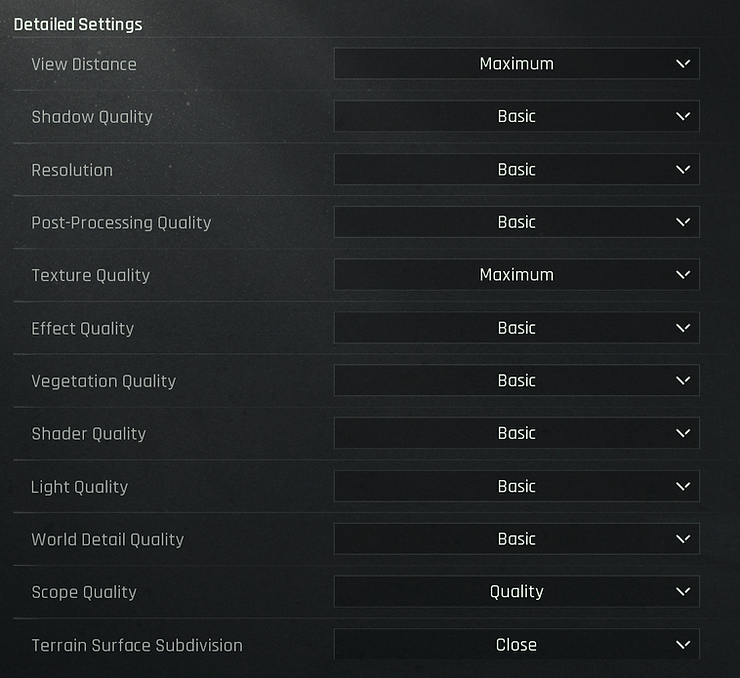
- Texture Quality: Medium to High (depends on VRAM)
- Shadow Quality: Low or Medium
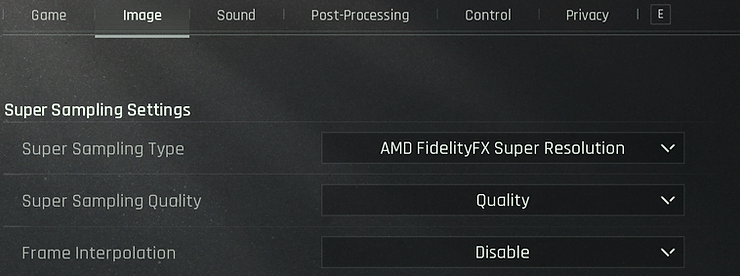
- Anti-Aliasing: TAA for cleaner edges or FXAA for extra performance
- Ambient Occlusion: Low or Off
- Post-Processing: Low; disable Motion Blur
- Anisotropic Filtering: 4x or 8x
- Foliage Quality: Low to Medium
- Effects Quality: Medium
- Resolution Scaling: 100% baseline, reduce only if needed for stability
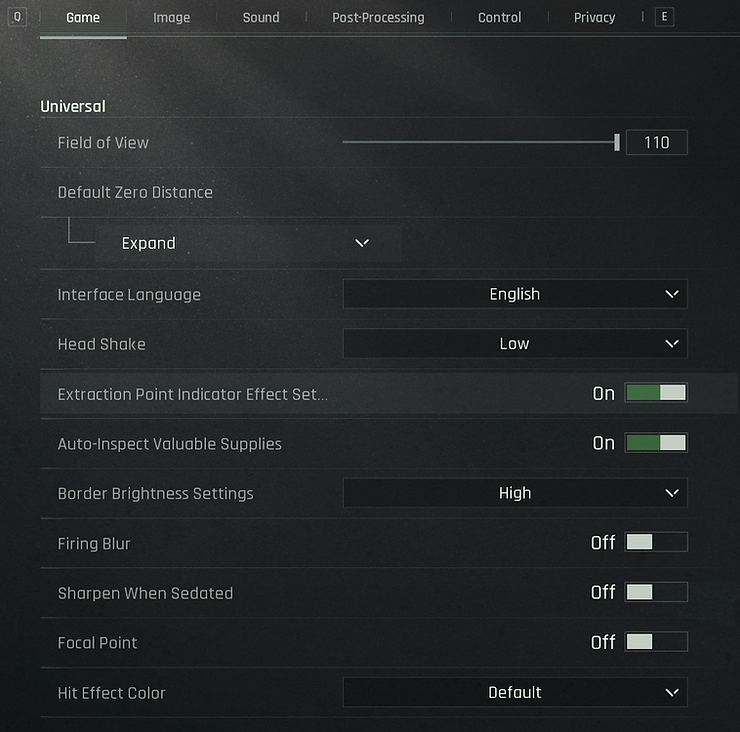
Hardware-Based Presets
Pick the preset closest to your system, then adjust only two variables first: Shadow Quality and Resolution Scaling. These usually provide the biggest gain-per-click.
| Hardware Tier | Primary Goal | Core Preset | Expected Result |
| Entry-Level | Playability | 900p/1080p, Low Shadows, Low Post-Processing, FXAA/Off | Steadier FPS in heavy combat |
| Mid-Range | Balance | 1080p, Medium Textures, Medium Effects, Low AO | Strong clarity + stable fights |
| High-End | High Refresh | 1080p/1440p, High Textures, Medium Shadows, limited effects | High FPS with clean image |
If you observe sudden drops during multiple explosions or smoke, lower Effects Quality first. If drops happen while scanning large open areas, lower Foliage Quality and Shadow Quality.
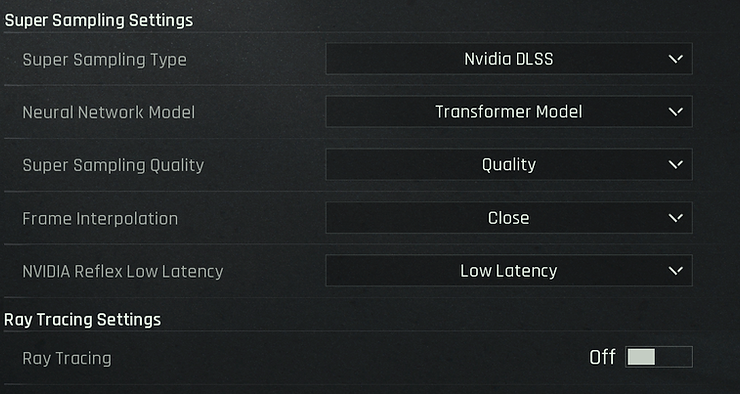
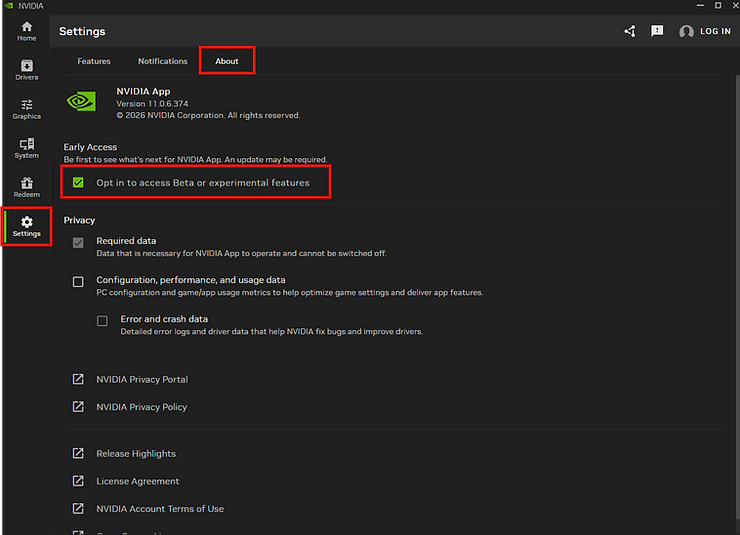
Windows and Driver Optimization
After in-game tuning, system tuning can remove micro-stutter and reduce response delay:
- Keep GPU drivers current and clean up old driver conflicts when needed.
- Use a high-performance power profile to avoid aggressive downclocking.
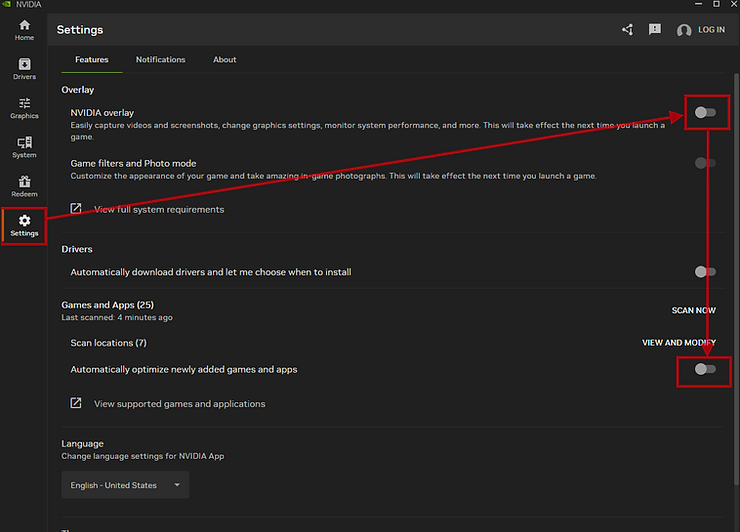
- Close background overlays and recording tools you do not need during ranked sessions.
- Enable hardware scheduling features only if your machine is stable with them.
- Use NVIDIA Control Panel or equivalent to keep latency-focused options consistent across sessions.
- Maintain storage headroom so the game can stream assets without hitching.
Map, Mode, and Weather Adjustments
Arena Breakout Infinite includes varied environments and visibility conditions. Dynamic weather and different engagement ranges can change how your preset performs.
When visibility drops, prioritize target recognition over eye candy:
- Reduce extra cinematic effects and keep Motion Blur disabled.
- Avoid ultra-dark contrast curves that hide movement in corners.
- Tune brightness and sharpness carefully to preserve detail without washing out enemies.
- For close-quarters maps, lower heavy shadow Arena Breakout Infinite Graphics Settings to stabilize close-fight consistency.
Performance Troubleshooting Checklist
- Low FPS all the time: lower Resolution Scaling, Shadows, and Effects.
- FPS is high but feels delayed: verify V-Sync Off, check queue/latency options, and test a stricter frame cap.
- Random stutter: close background tasks, check thermals, and verify storage health.
- Blurry image while moving: disable blur effects and re-check anti-aliasing choice.
- Frequent hitching after updates: rebuild shader cache and retest with clean startup conditions.
Recommended PC Specs Snapshot
For planning upgrades, here is a quick baseline Arena Breakout Infinite Graphics Settings:
| Profile | OS | CPU | Memory | GPU |
| Minimum | 64-bit Windows 10+ | Intel i5-7500 / Ryzen 5 1400 | 12 GB RAM | GTX 960 2G / RX 5500 / Arc A380 |
| Recommended | 64-bit Windows 10+ | Intel i7-9700 / Ryzen 5 3600X | 16 GB RAM | RTX 2060 / RX 6600 |
Storage target: 70 GB free space. Use DirectX 12 compatible hardware for best stability and feature support.
Gameplay Consistency and Fair Play
Beyond raw FPS, consistency also depends on stable raids and reliable combat feedback. A fair competitive Arena Breakout Infinite Graphics Settings and predictable combat review tools help players focus on improvement instead of guesswork.
FAQ
Q: Should I always use the lowest settings?
A: Not always. Keep settings low where they hurt visibility or latency, but keep texture quality high enough for clean target definition if VRAM allows.
Q: Is uncapped FPS always best?
A: Not necessarily. A smart cap can improve frame pacing and feel smoother than unstable uncapped output.
Q: What should I change first after a patch?
A: Recheck Shadow Quality, Effects, and Resolution Scaling, then run a short raid test for stability.
Conclusion
The best Arena Breakout Infinite setup is not a single magic preset. It is a performance framework: stable FPS, low input latency, controlled visual noise, and fast adaptation to map conditions. Start with the competitive profile in this guide, tune by hardware tier, then lock in a repeatable pre-raid checklist. you can get new Arena Breakout: Infinite Codes in from BuffBuff.com.With that approach, your game will feel smoother, clearer, and far more consistent under pressure.